How to Automate Invoice Processing from Email to ERP
How to Automate Invoice Processing from Email to ERP
THE SHORT ANSWER Automating invoice processing from email to ERP means capturing invoice attachments, identifying valid invoices, extracting key fields with OCR and AI, checking the results against business rules and purchase orders, routing exceptions for approval, and posting approved records to an ERP. The workflow reduces repetitive data entry while keeping finance teams in control. |
This guide is written for CFOs, finance managers, accounts payable leaders, IT heads, procurement teams and hospital administrators. It walks through a realistic email-to-ERP workflow, the controls that keep it trustworthy, the integration options to evaluate and a practical way to start with a pilot.
IN THIS GUIDE • Why email-to-ERP automation matters, and the workflow at a glance • Six steps: capture, classify, extract, validate, approve and post, monitor • Security, scale and ERP integration: what to plan before you commit • Manual vs. automated processing, how to run a pilot, and FAQs |
Why email-to-ERP automation matters
Invoices often arrive as PDFs, scanned images or attachments from many different suppliers. Manual downloading, retyping, validation and ERP entry create delays and make exceptions hard to track.
| 01 | Many formats | PDFs, scans and attachments from multiple suppliers, each with its own layout. |
| 02 | Manual re-entry | Downloading, retyping and validating by hand slows every invoice down. |
| 03 | Hidden exceptions | Mismatches and missing details are hard to find and track without a queue. |
Automation standardizes intake and provides an auditable path from receipt to posting. It does not eliminate the need for controls: low-confidence fields, unusual totals and mismatched purchase orders still need review.
The workflow at a glance
A dependable pipeline moves each invoice through eight stages, from the moment it reaches a shared inbox or upload screen to the moment its ERP posting is monitored.
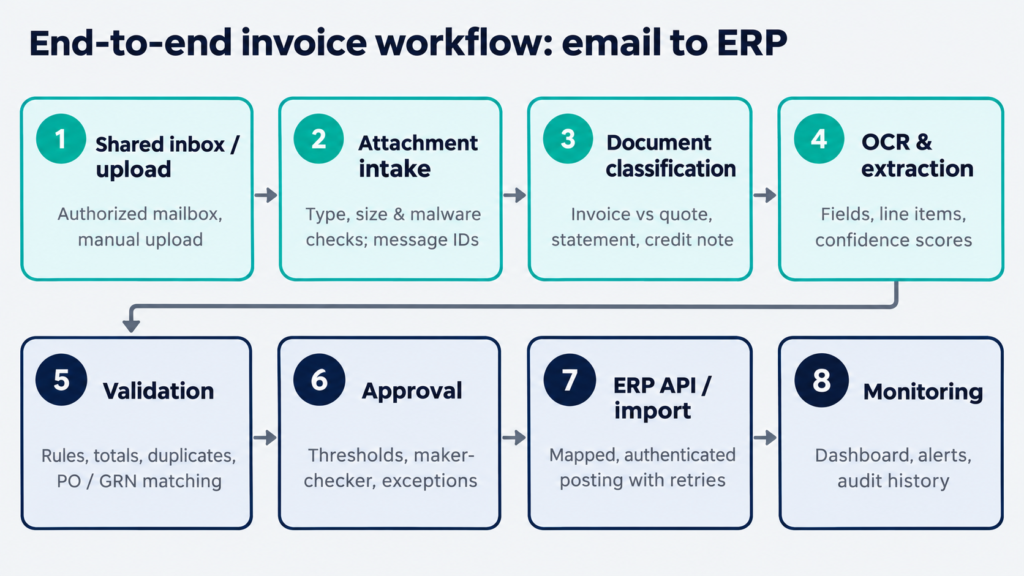
Figure 1. End-to-end invoice workflow, from shared inbox to monitored ERP posting.
Key terms in plain language
| Term | What it means |
|---|---|
| OCR (Optical Character Recognition) | Converts scanned or image-based content into machine-readable text. |
| IDP (Intelligent Document Processing) | Combines OCR with layout-aware AI models to find fields, tables and line items in documents. |
| ERP (Enterprise Resource Planning) | The core business system where finance records, such as supplier invoices, are posted and tracked. |
| GRN (Goods Receipt Note) | A record that goods or services were received, used to confirm that what was invoiced was delivered. |
| Two-way matching | Compares the invoice against the purchase order (PO). |
| Three-way matching | Compares the invoice against the PO and the goods receipt (GRN). |
| Idempotency | A design property where retrying the same action does not create a duplicate record. |
| Maker-checker | One person prepares or submits a record and a different authorized person approves it. |
Step 1: Capture invoices from email and uploads
Connect an authorized shared mailbox or a dedicated invoice address using supported email APIs or secure forwarding. The goal is reliable, traceable intake, with nothing lost and nothing processed twice.
- Detect and retrieve: pick up new messages and fetch only the attachments you are permitted to process.
- Preserve evidence: store message IDs and timestamps alongside the original file.
- Screen files: check file type, size and malware risk before anything moves downstream.
- Offer a manual route: provide an upload path for scanned paper invoices and supplier portals.
- Stay idempotent: make sure retries never create duplicate ERP records.
ENGINEER'S NOTE Mailbox pollers and webhooks both fail occasionally and redeliver. Derive a stable idempotency key for each attachment, for example from the message ID plus a file fingerprint, and check it before creating any record. |
Step 2: Classify documents before extraction
Not every attachment is an invoice. Classify invoices
separately from quotations, delivery notes, statements
and credit notes, and record the classification outcome
and confidence so teams can audit why a document
advanced or stopped.
| Document type | Typical handling |
|---|---|
| Invoice | Continue to extraction and validation. |
| Credit note | Handle separately, with its own validation and posting rules. |
| Quotation, delivery note, statement | Do not post as an invoice; retain or route according to your policy. |
| Unsupported or unreadable format | Reject, or route to a reviewer with the reason recorded. |
Step 3: Extract invoice data with OCR and AI
OCR converts scanned content into machine-readable text. Document AI or layout-aware models then identify the fields and line items that matter. Common fields include:
- Supplier name and tax ID, invoice number and invoice date
- Purchase order reference and currency
- Tax breakdown, including HSN/SAC codes where applicable
- Quantities, unit prices, line totals and the grand total
Use confidence scores and field-level source references when available, and avoid treating model output as automatically correct. The structured result below shows what a downstream system might receive, including a confidence flag that sends this invoice to review.
Step 4: Validate extracted information
Extraction gives you candidate values. Validation decides whether they can be trusted. Run deterministic checks, and route discrepancies to an exception queue rather than silently correcting or posting them.
← Swipe horizontally to view the full table →
| Check | What it catches | If it fails |
|---|---|---|
| Required fields | Missing supplier, invoice number, date or total | Send to exception queue |
| Arithmetic and tax | Line items or tax that do not add up to the stated totals | Send to exception queue |
| Duplicate detection | Same supplier and invoice number, plus other signals | Hold for review |
| Supplier master | Unknown suppliers or details that differ from master records | Hold for review |
| PO and GRN matching | Invoices that do not agree with the order or goods received | Hold with reasons and documents |
For purchase-order invoices, perform two-way or three-way matching with PO and goods-receipt data wherever the ERP supports it. The diagram below shows how results are routed once the checks have run.
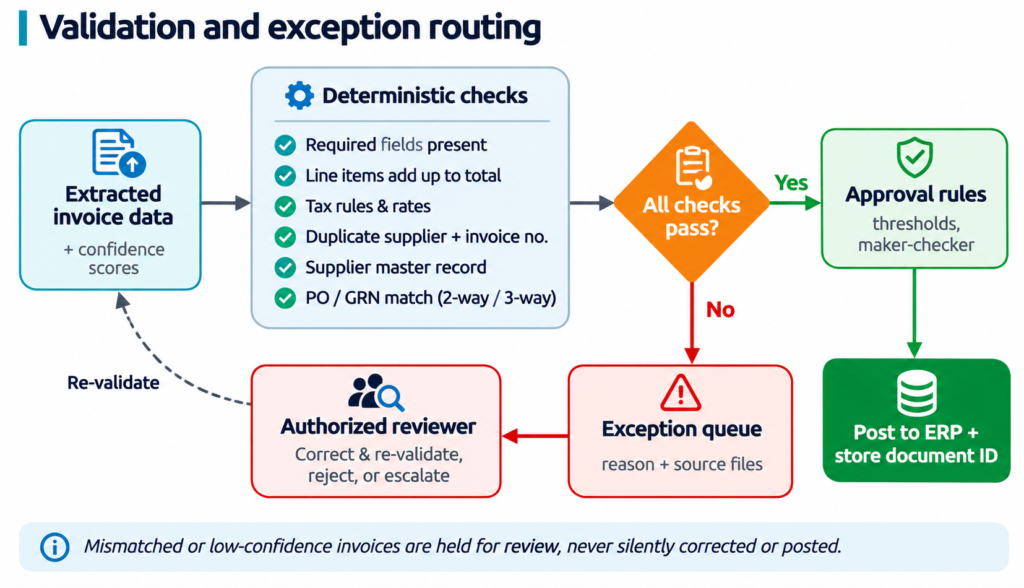
Figure 3. Validation and exception routing.
Step 5: Approve and post to the ERP
Map validated fields to the target ERP schema. Depending on the platform, use authenticated APIs, middleware, approved file imports or a supervised integration layer.
- Control approvals: support approval thresholds, maker-checker workflows and vendor-specific rules.
- Post only when approved: release records to the ERP after required approvals are complete.
- Capture the result: store the ERP document ID and the posting outcome.
- Retry safely: use retries with backoff and duplicate protection.
- Reconcile: investigate failures rather than assuming success.
Common integration options
ERP integration may involve SAP, Oracle, Microsoft Dynamics, Tally or a custom finance system. The available connectors and supported write operations differ by version and deployment.
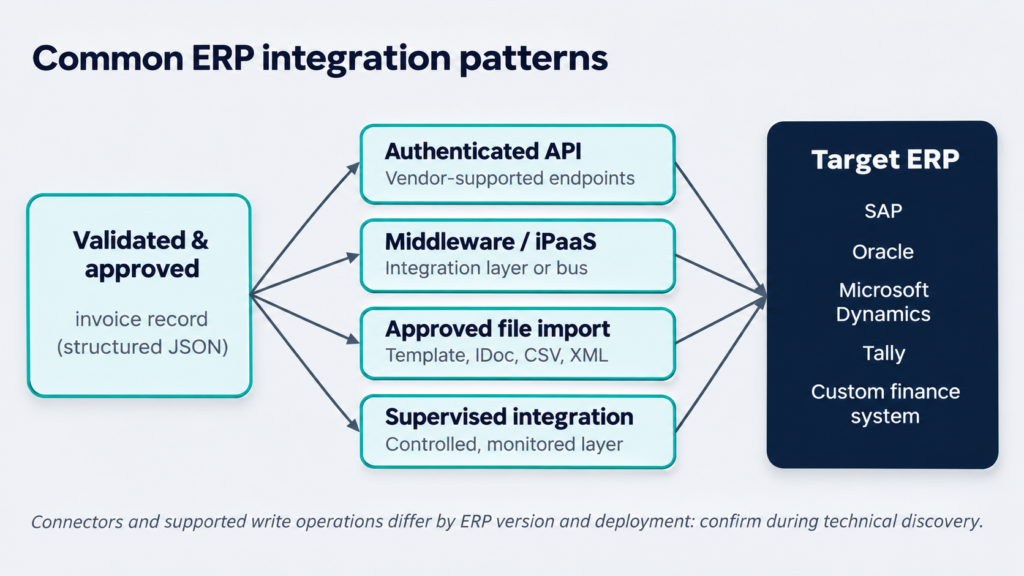
Figure 4. Common patterns for posting validated invoices to an ERP.
Begin with the ERP's supported API or import specification, master-data rules, error responses and approval requirements. Never promise plug-and-play integration without a technical discovery exercise.
Step 6: Monitor the process through a dashboard
A dashboard turns the pipeline from a black box into something finance and IT can both operate. It should show:
- Invoice intake volume and pending approvals
- Extraction confidence and the exception queue
- ERP posting status and processing-time distributions
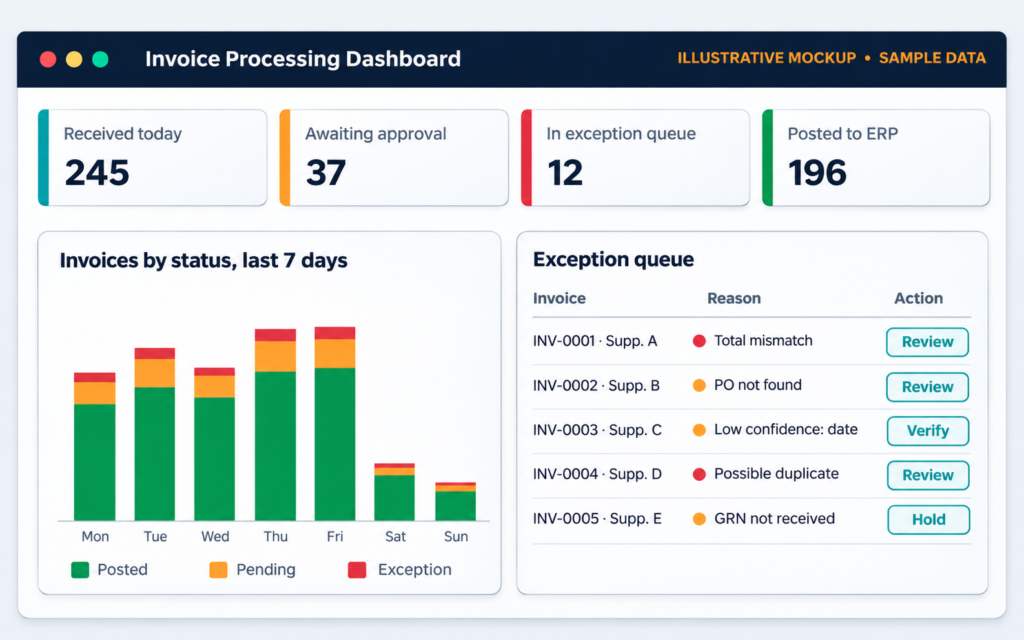
Figure 5. Illustrative dashboard mockup with sample data. It is not a production result.
Provide drill-down access to original documents and audit history with role-based permissions, and use alerts for stuck queues, repeated failures or unusual spikes.
Security, compliance and operational controls
Invoices carry supplier financial data, so security is part of the design from day one. Define where documents and model inputs are processed, especially when using third-party AI APIs, and review data residency and contractual requirements before deployment.
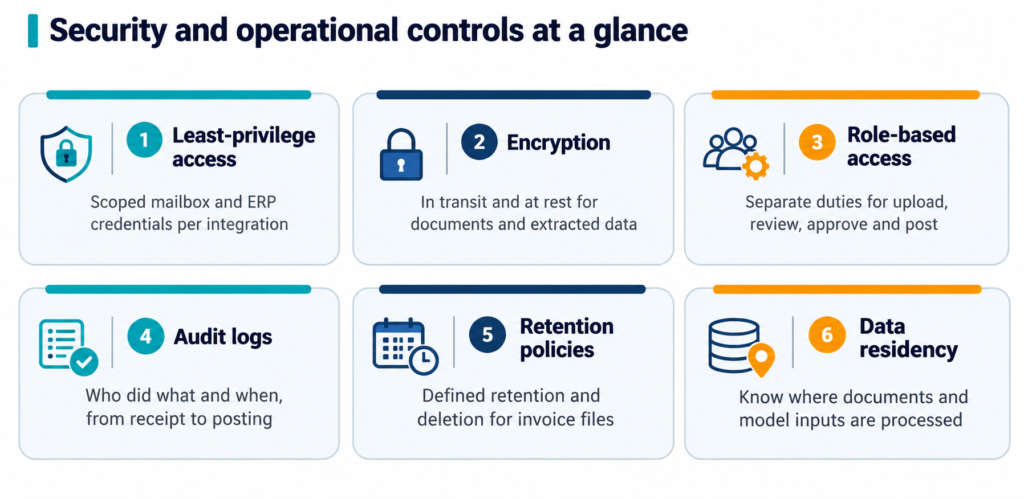
Figure 6. Core security and operational controls for invoice automation.
Can this process 10,000 invoices per day?
High-volume processing is an architecture and capacity-planning question, not a guaranteed model feature. Several factors shape what a given deployment can handle:
- Queue-based workers and horizontal scaling
- Batching where appropriate, and rate limits on AI and email services
- Document complexity and quality
- ERP throughput and posting constraints
TARGETS VS. MEASURED RESULTS A target of 10,000 invoices per day requires load testing with realistic documents and an agreed service-level objective. Likewise, a 30-second dashboard target should be validated separately for ingestion, extraction and posting. Treat both as targets until testing proves them. |
Manual versus automated processing
Manual workflows rely heavily on staff to open attachments, interpret layouts, retype values and chase approvals. Automated workflows handle repeatable intake and extraction steps, standardize validation and provide a centralized exception queue.
← Swipe horizontally to view the full table →
| Area | Manual handling | Automated workflow |
|---|---|---|
| Intake | Staff open emails and download attachments | Mailbox monitored; files captured with message IDs and timestamps |
| Data entry | Values retyped into the ERP | Fields extracted by OCR and AI, with confidence scores |
| Validation | Depends on individual diligence | Standardized checks for totals, tax, duplicates, suppliers and POs |
| Exceptions | Chased over email or chat; hard to track | Central queue with reasons and source documents |
| Approvals | Manual follow-up | Threshold-based and maker-checker routing |
| Audit trail | Scattered across inboxes and sheets | Event history from receipt to ERP posting |
Actual time savings, accuracy and cost depend on invoice quality, supplier variation, approval complexity and ERP constraints, so measure them in your own environment rather than assuming them.
How to start with a pilot
Select a representative sample covering major suppliers, PDF and scan formats, tax scenarios, credit notes and edge cases. Agree on field-level accuracy targets, exception thresholds, processing-time percentiles, duplicate prevention and ERP posting acceptance criteria. Run the pilot with human review, measure performance, then expand by supplier group or business unit.
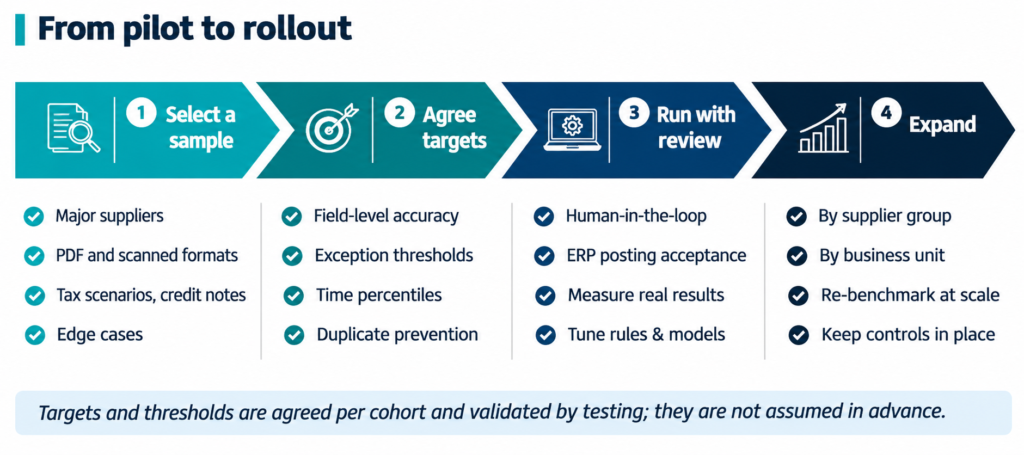
Figure 7. A pilot-first path from sample to rollout.
.
KEY TAKEAWAYS • Email-to-ERP automation is a pipeline: capture, classify, extract, validate, approve and post, monitor. • OCR is only one step; validation, approvals and a supported ERP integration complete the job. • Route low-confidence and mismatched invoices to people instead of correcting or posting them silently. • Treat throughput and turnaround figures as targets until load tests prove them. • Start with a pilot on representative documents, then expand with the controls in place. |
Frequently asked questions
Yes, with authorized mailbox access, attachment handling, classification and extraction workflows. Unsupported files and exceptions should be routed for review.
No. OCR reads content; validation, business logic, approvals and a supported ERP integration are also needed.
Use combinations of supplier identity, invoice number, date, amount and document fingerprints, with ERP-side checks and idempotent posting.
Hold the record in an exception queue for an authorized reviewer, with reasons and supporting documents.
Often yes, but extraction quality varies with image quality, handwriting, layouts and language; benchmark representative samples.
Only for cases that meet explicit policy, confidence and validation thresholds. Higher-risk or mismatched invoices should require approval.
How AI India Innovations can help
AI India Innovations develops tailored document-processing and workflow-automation solutions, including AI OCR, structured extraction, validation, review dashboards and integration engineering. A discovery workshop can identify your invoice formats, ERP interfaces, approval policies, data-security needs and pilot success metrics.
NEXT STEP Ready to assess feasibility for your environment? Request a technical discussion or proof of concept to assess feasibility for your invoice formats, ERP and security requirements. Let's connect and discuss your requirements! connect.aiindia@gmail.com |